1. In your Google Business Profile (recommended)
Open your Business Profile, click “Read reviews” and then “Get more reviews” — your review link is right there.
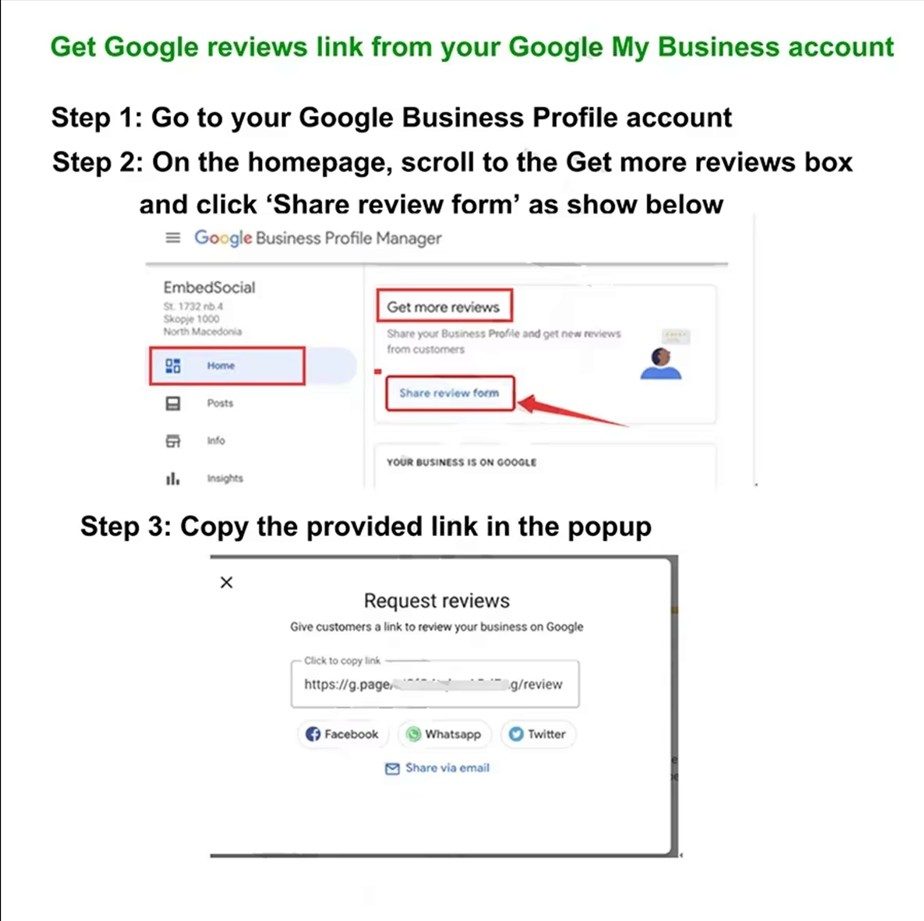

Three short guides: activating your QR code, writing an NFC tag, and getting your Google review link. All of it happens on your phone — nothing to install.
Four steps, all done on your phone — no app to install.
Open your phone camera and point it at the QR code on the product, about 20-30 cm away. A link appears at the top of the screen.
Tap the link to open this site, then register with your email or sign in if you already have an account. Keep the password safe — you need it to manage your products.
On the home screen tap "Activate Product", fill in the product code, the activation code printed under the QR code, and the redirect link you want, then tap Activate.
Open "Mine" and then "Activation Records" to see what you have activated and to change the redirect link at any time. Changes take effect immediately.
QR walkthrough
The activation code is only needed once. It is not required after activation — but keep it safe until then.
Available in 9 languages
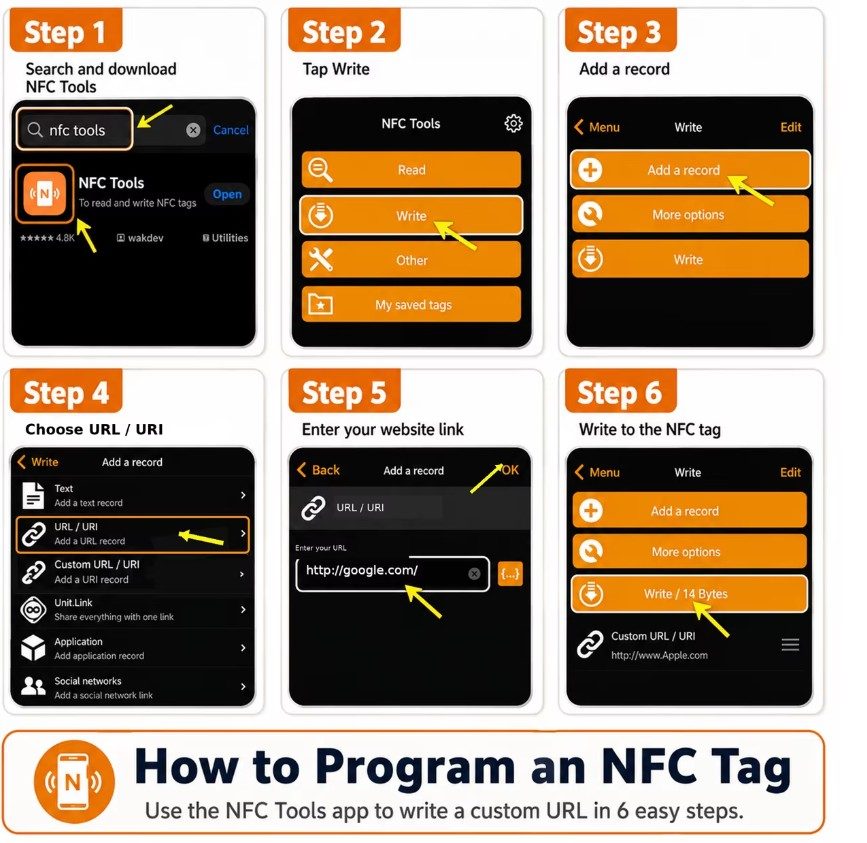
Write a link into the NFC tag inside the product — four steps with the free NFC Tools app.
Download NFC Tools free from the Apple App Store or Google Play.
In NFC Tools, go to “Write” and choose “Add a record”.
Choose the record type “URL” and enter the link the tag should open. Use this site’s activation link so a tap opens the activation page.
Tap “Write” and hold the phone near the product’s NFC tag until the write is confirmed.
Two ways — use whichever fits.
Open your Business Profile, click “Read reviews” and then “Get more reviews” — your review link is right there.
Still claiming your Business Profile? Open the Google Maps developer page for the Place ID Finder and search your business name. A small window on the map shows the place ID — copy it into the URL below, after “placeid=”. Place ID Finder
https://search.google.com/local/writereview?placeid=<place_id>
Replace <place_id> with your own ID, then use the finished link as your redirect link.
Send us the product code and a photo of the label and we will walk you through it.
The activation code is only needed once. It is not required after activation — but keep it safe until then.
WhatsApp is the quickest channel. Email works too if you are attaching files.
View all products